Price Changes
To change prices, Price Changes on the Inventory Menu. You will be prompted to choose Manual,
Automatic, or Manual.

Manual, Automatic, Excel
If a manufacturer sent you a large number of changes, chose Automatic,and select the Vendor in the drop down list.
Otherwise, choose Manual. An "Enter Style Number" form will appear.
For manual updates, enter the Style number of the item you wish to update. You can also look items up by Vendor Name.
If you have an excel sheet with the prices, you may be able to use the automated import form. Due to lack of industry
standards, your excel spreadsheet may not be readable by our software, and may therefore need to be entered by hand.
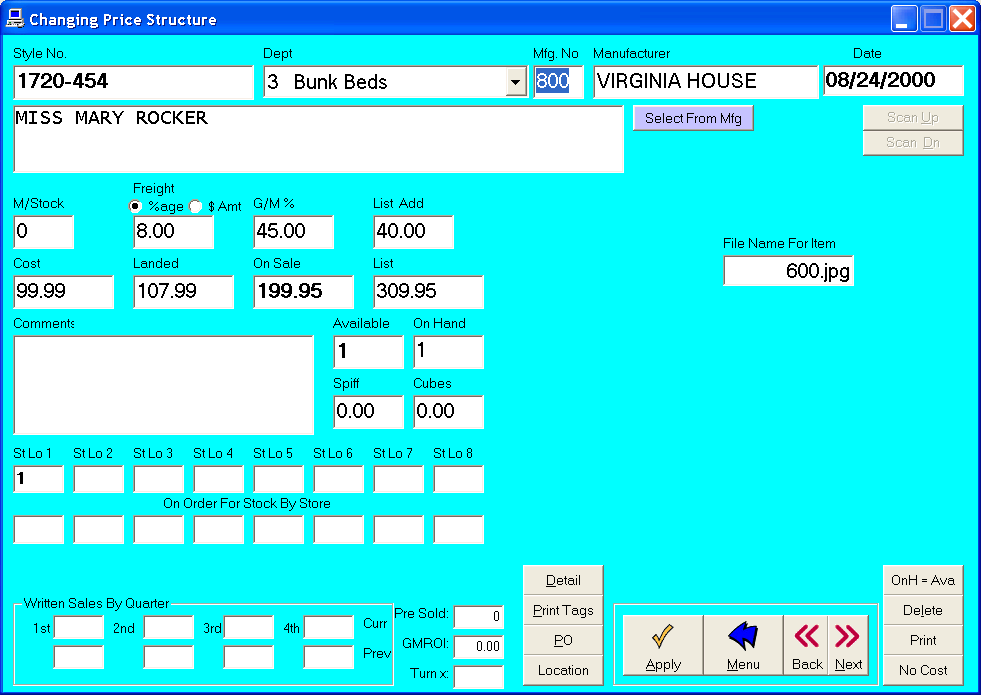
Changing Prices
The "Changing Price Structure" form will show information about the style number you choose.
In the Cost field, enter the new cost, and press Tab on the keyboard.
The Landed, On Sale, and List fields will automatically be updated.
To save changes, click OK.
If you chose Automatic, the next record will appear.
Use the Back/Next buttons to scroll through records.
If you chose Manual, the "Enter Style Number" form will appear.
Note: Using Back/Next will not save the record. To save the record, click OK before Back/Next.
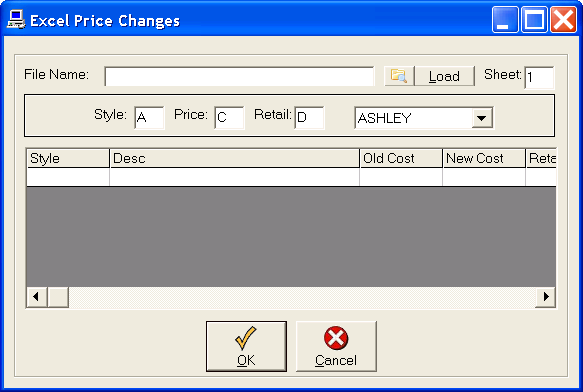
Importing Price Changes via Excel
If you have a spreadsheet, select Excel and click OK.
Select the file at the top of the sheet, including worksheet number. Select the columns for style, cost, and retail price.
When you have this selected, press Load at the top right of the form to populate the grid.
If you agree with the changes to be made in the grid, click OK at the bottom of the form.
This will import the changes into your database.